That Java Thing, Part 6: Creating the Feature and Update Site

Sun Nov 08 10:45:08 EST 2015

Tags: java xpages
  1. Nov 02 2015 - That Java Thing, Part 1: The Java Problem in the Community
  2. Nov 03 2015 - That Java Thing, Part 2: Intro to OSGi
  3. Nov 04 2015 - That Java Thing, Part 3: Eclipse Prep
  4. Nov 05 2015 - That Java Thing, Part 4: Creating the Plugin
  5. Nov 06 2015 - That Java Thing, Part 5: Expanding the Plugin
  6. Nov 08 2015 - That Java Thing, Part 6: Creating the Feature and Update Site
  7. Nov 09 2015 - That Java Thing, Part 7: Adding a Managed Bean to the Plugin
  8. Nov 10 2015 - That Java Thing, Part 8: Source Bundles
  9. Nov 11 2015 - That Java Thing, Part 9: Expanding the Plugin - Jars
  10. Nov 12 2015 - That Java Thing, Part 10: Expanding the Plugin - Serving Resources
  11. Nov 16 2015 - That Java Thing, Interlude: Effective Java
  12. Dec 01 2015 - That Java Thing, Part 11: Diagnostics
  13. Dec 03 2015 - That Java Thing, Part 12: Expanding the Plugin - JAX-RS
  14. Feb 19 2016 - That Java Thing, Part 13: Introduction to Maven
  15. Feb 21 2016 - That Java Thing, Part 14: Maven Environment Setup
  16. Feb 22 2016 - That Java Thing, Part 15: Converting the Projects
  17. Feb 23 2016 - That Java Thing, Part 16: Maven Fallout
  18. Feb 26 2017 - That Java Thing, Part 17: My Current XPages Plug-in Dev Environment

The last post covered turning our nascent plugin into a proper XPages library, so now it's time to fill in the remaining pieces to get it installed.

To do that, we'll need a feature and an update site. The feature will point to our plugin - in a more-complicated setup, this could point to several related plugins, but we'll just need the one. The update site will do similarly, referencing the feature in a way that Eclipse-type platforms know about.

Go to File → New and choose "Feature Project" within "Plug-in Development":
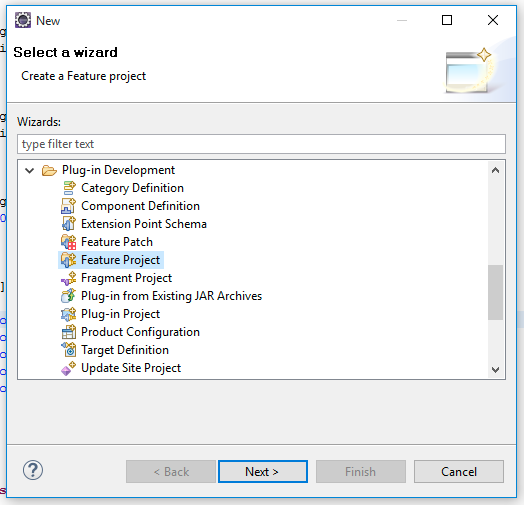
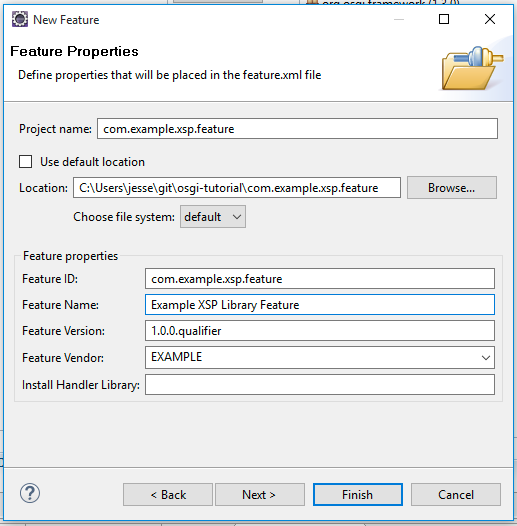
Hit "Next" and fill out the feature details:

  • Set the project name to "com.example.xsp.feature"
  • Override the location with a folder inside the Git repository (remembering to include the feature name in the path, to avoid placing it in the top-level folder)
  • Pick a feature name, such as "Example XSP Library Feature"
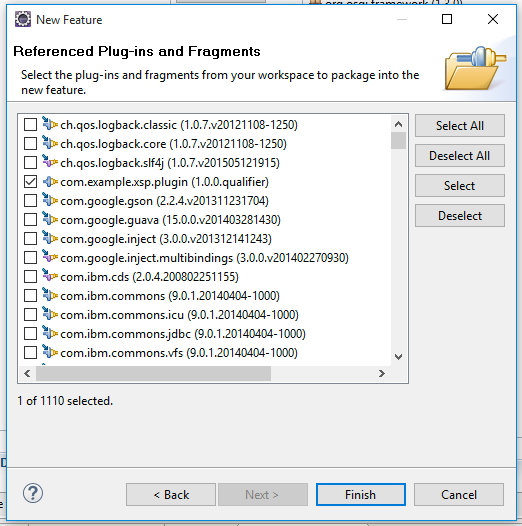
Click "Next", find and check "com.example.xsp.plugin" in the list of plugins to include in the feature, and click "Finish":
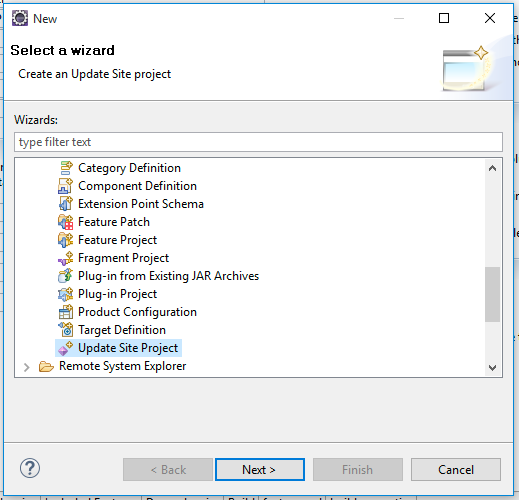
That's about it for the feature. Next up: the update site. As before, go to File → New and choose "Update Site Project" within "Plug-in Development":
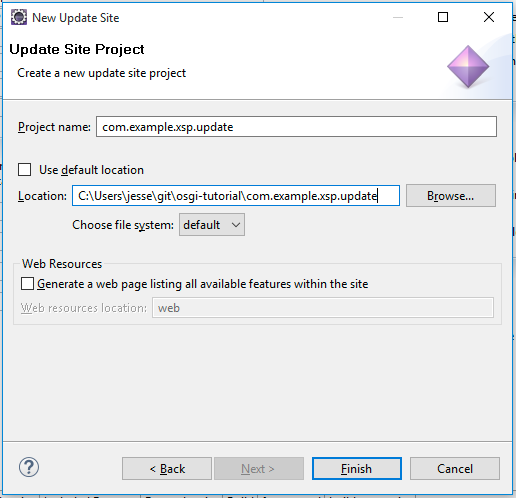
There's not much configuration to do for this one: just name it "com.example.xsp.update" and override its location to be within your Git repository:
Once the update site is created, click "Add Feature.." in the site.xml editor and add the new "com.example.xsp.feature" project:
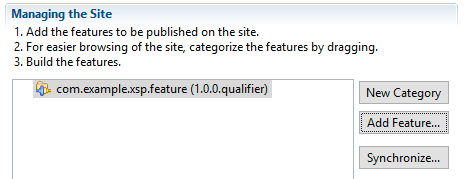
One last optional step is to set up a category in the update site, which will help organization on the server. To do that, click "New Category" and give it a name and ID. Then, drag the feature in the list onto the category to add it to the group:
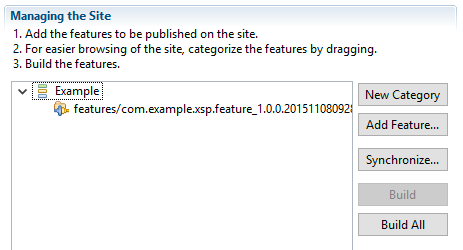
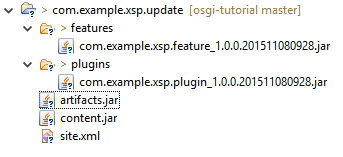
Now the update site definition is set up, and the next step is to click "Build All" to have Eclipse package your plugin inside the update site. That will create a number of files within your update site project, which are the actual artifacts we need:
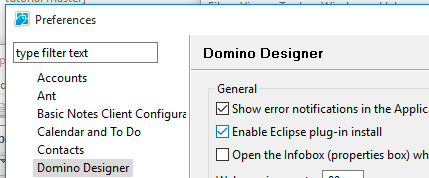
Next is to install the library into Designer. Launch Notes, then Designer (the sequence is important to avoid a bug with NSF update sites, so I stick to this habit), and open Preferences. In there, go to the "Domino Designer" section and check "Enable Eclipse plug-in install":
Hit "OK" to close the preferences and then go to File → Application → Install. In the dialog that pops up (sometimes there's a lengthy delay before it does for some reason), select "Search for new features to install" and click "Next". On the next pane, choose "Add Folder Location..." and browse to the update site project:
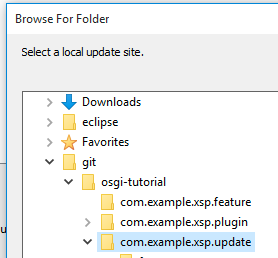
The next dialog will prompt for a name, and for now the default will do. Click "OK" in this dialog and "Finish" in the main one. If all goes well, that should bring up another dialog after a couple of seconds, which will allow you to select the feature:
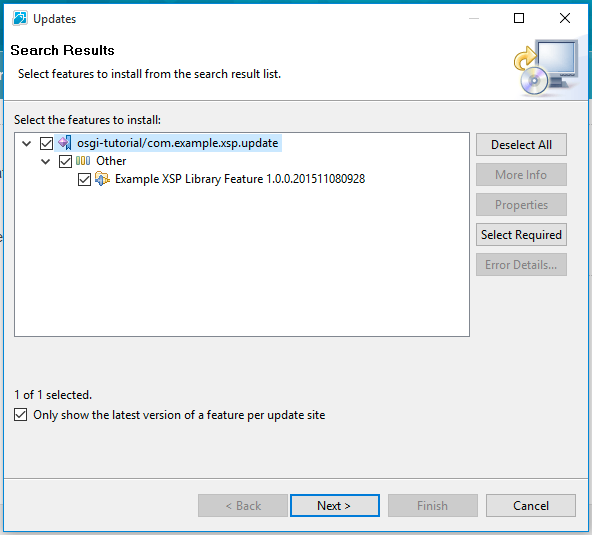
Click "Next" and then "Finish". As it installs, you'll get a prompt to install the unsigned plugin, so select "Install this plug-in" and click "OK". Designer will do its thing and then display a small toast window in the bottom right asking if you want to restart now. It at least used to be the case that clicking this didn't do a proper restart (presumably due to the Notes stuff), so I still avoid clicking it. Instead, close Notes and Designer, and then relaunch them (Notes first again).

Now, to see that everything is working, open an existing application in Designer (or make a new one), go to Application Configuration → Xsp Properties → Page Generation tab, and look for "com.example.xsp.library" in the "XPage Libraries" section:
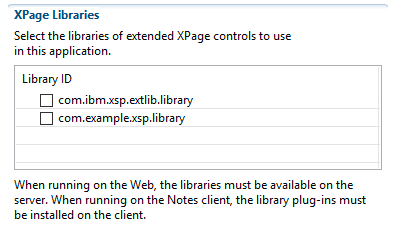
If it's not there, something went wrong. Unfortunately, debugging this sort of thing can get hairy, so it'd probably be best to ask me or someone else knowledgable about plugins for assistance for now.

Assuming it did work, though: great! Next up is the installation on the server. This is a whole tutorial on its own, and fortunately IBM has done the job for me. The upshot of those instructions is:

  • Create a database on the server using the "Eclipse Update Site" template (updatesite.ntf) and clean up the ACL to something appropriate. To see the template, make sure to click "Show advanced templates".
  • Import com.example.xsp.update by using the "Import Local Update Site" option and pointing to its site.xml file
  • Set the notes.ini property "OSGI_HTTP_DYNAMIC_BUNDLES" on the server to point to the file name of that update site
  • Restart HTTP or the entire server

Once HTTP or the server is restarted, you can test to see if it's working by creating an application on the server that has the library checked in the Xsp Properties page as above, and then visiting an XPage in it with a browser. If it's working, it will load normally; otherwise, it will complain about the application relying on a missing library.

So that covers the build and installation cycle! There's one last change to make in the projects before we commit them to Git. The update site project produces tons of Jar files - two for every "Build All" click - and there's no need to check them into the repository. This is a job for a .gitignore file, which we'll put in the update site project because we don't want to ignore intentional Jars later - .gitignore files cascade hierarchically. Right-click on the update site project in Eclipse and choose New → File:

Name the file ".gitignore" (with the starting dot) and click "Finish". The file contents should be a single line:

*.jar

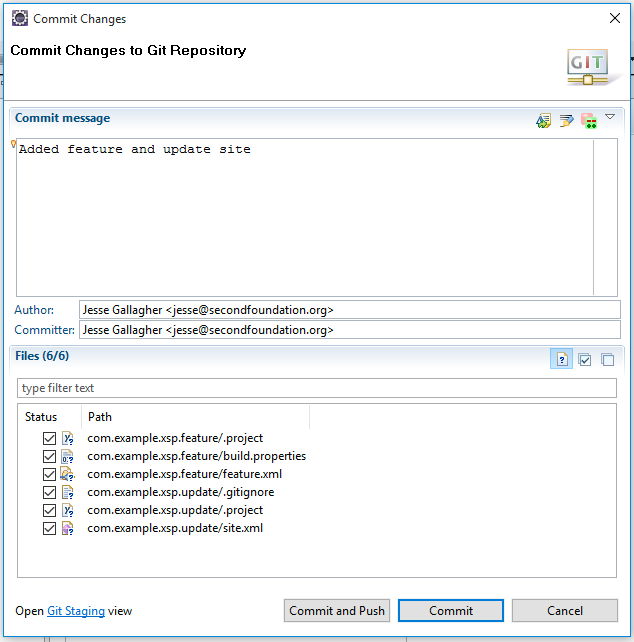
Now, go to commit the changes to the repository, and you should be able to see the projects and Git ignore file we created, but not the Jars:
Now that we have the library built and deployed to the server, the next step will be to actually make it useful, by adding some Java code and accessing it from the XPages application.
That Java Thing, Part 5: Expanding the Plugin

Fri Nov 06 08:48:55 EST 2015

Tags: java xpages
  1. Nov 02 2015 - That Java Thing, Part 1: The Java Problem in the Community
  2. Nov 03 2015 - That Java Thing, Part 2: Intro to OSGi
  3. Nov 04 2015 - That Java Thing, Part 3: Eclipse Prep
  4. Nov 05 2015 - That Java Thing, Part 4: Creating the Plugin
  5. Nov 06 2015 - That Java Thing, Part 5: Expanding the Plugin
  6. Nov 08 2015 - That Java Thing, Part 6: Creating the Feature and Update Site
  7. Nov 09 2015 - That Java Thing, Part 7: Adding a Managed Bean to the Plugin
  8. Nov 10 2015 - That Java Thing, Part 8: Source Bundles
  9. Nov 11 2015 - That Java Thing, Part 9: Expanding the Plugin - Jars
  10. Nov 12 2015 - That Java Thing, Part 10: Expanding the Plugin - Serving Resources
  11. Nov 16 2015 - That Java Thing, Interlude: Effective Java
  12. Dec 01 2015 - That Java Thing, Part 11: Diagnostics
  13. Dec 03 2015 - That Java Thing, Part 12: Expanding the Plugin - JAX-RS
  14. Feb 19 2016 - That Java Thing, Part 13: Introduction to Maven
  15. Feb 21 2016 - That Java Thing, Part 14: Maven Environment Setup
  16. Feb 22 2016 - That Java Thing, Part 15: Converting the Projects
  17. Feb 23 2016 - That Java Thing, Part 16: Maven Fallout
  18. Feb 26 2017 - That Java Thing, Part 17: My Current XPages Plug-in Dev Environment

In the last post, we created an empty plugin project for our XPages library. Today, we'll flesh that plugin out a bit and add the actual XSP hooks.

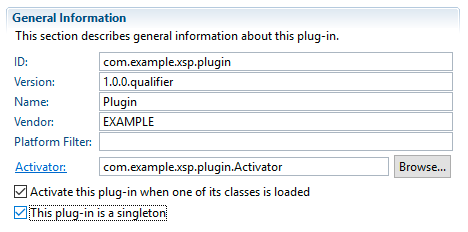
The first step is to start filling in some details in the plugin's Manifest file, which is the core description of what the plugin does and what it requires in its environment. To begin with, open the MANIFEST.MF file in the META-INF folder of your project and check the "This plug-in is a singleton" checkbox:

During one of the steps later, Eclipse would have yelled at us to do that anyway. This checkbox means that the plugin expects to be the only one of its kind active on the server. This is because it will contribute to the XSP Library extension point, and it should prevent duplicate contributions of the same library from different versions.

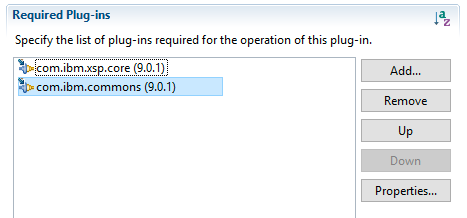
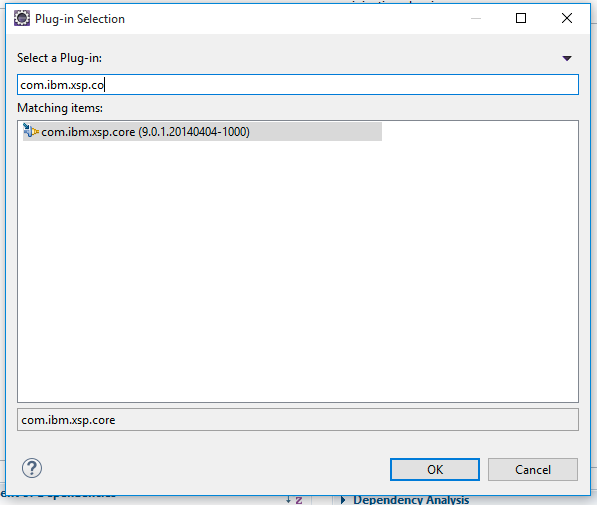
Next, go to the Dependencies tab of the Manifest editor, click "Add..." in the "Required Plug-ins" section on the left, and add "com.ibm.xsp.core":

Do the same with "com.ibm.commons":

Now, save and close the Manifest. The next step is to fix up a minor problem I forgot about in the last post: the base package name. By default, the base package is named after the plugin project, which means it now contains a redundant "plugin" part. That's not a problem per se, but it's not needed, and this will be a good introduction to Eclipse refactoring.

Expand the "src/main/java" (or "src" if you left it as the default) package folder within the project, then right-click on "com.example.xsp.plugin" and choose "Refactor" → "Rename...". Change the name to "com.example.xsp", make sure "Update references" is checked, check "Update fully qualified names in non-Java text files", and click "Preview". This should list a couple changes - Eclipse looks for references to the class in both Java and non-Java files to try to cover all of the bases. In a larger project, there may still be lingering references elsewhere, but in this case it does everything for us. Click "OK".

It's possible that there may be a small detour at this point. On my machine, I noticed a strange problem in Eclipse after making this change: it set the output folder of the project to a nonsense directory within the source. To make sure this isn't happening, double-click on build.properties and go to the "build.properties" tab. Make sure the "output.." line reads output.. = target/classes (or output.. = bin if you left the defaults). This is the file that controls many of the compilation settings for the plugin, and this specifically specifies the location for the compiled Java classes.

Now, time to expand the Activator a bit. Expand "com.example.xsp" and open the "Activator.java" file. The Activator class is an optional but there-by-default class that provides a couple hooks during the lifecycle of the plugin. For XSP libraries, there's usually not too much going on here, but it can serve as a useful coordinating and debugging point.

One such potential use is a centralized logger configuration. At least for now, we'll just use the basic JVM logging classes, since "proper" OSGi logging is a whole thing. With the addition of a logging property and initialization message, the Activator looks like this:

package com.example.xsp;

import java.util.logging.Level;
import java.util.logging.Logger;

import org.osgi.framework.BundleActivator;
import org.osgi.framework.BundleContext;

public class Activator implements BundleActivator {

	private static BundleContext context;
	
	public static final Logger log = Logger.getLogger(Activator.class.getPackage().getName());
	static {
		log.setLevel(Level.FINEST);
	}

	static BundleContext getContext() {
		return context;
	}

	/*
	 * (non-Javadoc)
	 * @see org.osgi.framework.BundleActivator#start(org.osgi.framework.BundleContext)
	 */
	public void start(BundleContext bundleContext) throws Exception {
		Activator.context = bundleContext;
		
		if(log.isLoggable(Level.INFO)) {
			log.info("Starting Example XPages Library");
		}
	}

	/*
	 * (non-Javadoc)
	 * @see org.osgi.framework.BundleActivator#stop(org.osgi.framework.BundleContext)
	 */
	public void stop(BundleContext bundleContext) throws Exception {
		Activator.context = null;
	}

}

The static block that sets the log level is a good trick to know about: that block executes once, when the class is first loaded. It's distinct from a contructor, which turns each time a new object of the class is created. It may help to think of the static portions of a class (the properties, methods, and this block) as a sort of special singleton version of the class created by the runtime. This sort of thing is non-obvious to new Java developers, but it starts to make sense after you do it for a while.

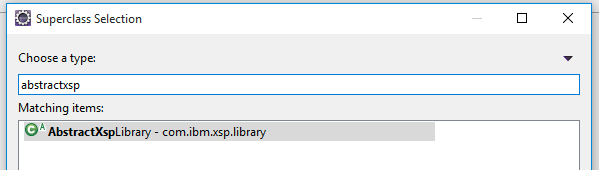
With the Activator in place, the next step is the actual XPages library class, which provides the specific details about the plugin's XSP interactions. Right-click on the "com.example.xsp" package and choose "New" → "Class" (if "Class" doesn't appear in that list, choose "Other" and then find "Class" within the "Java" folder). In the "New Java Class" dialog, click "Browse..." in the "Superclass" line around the middle, and look for the class AbstractXspLibrary:

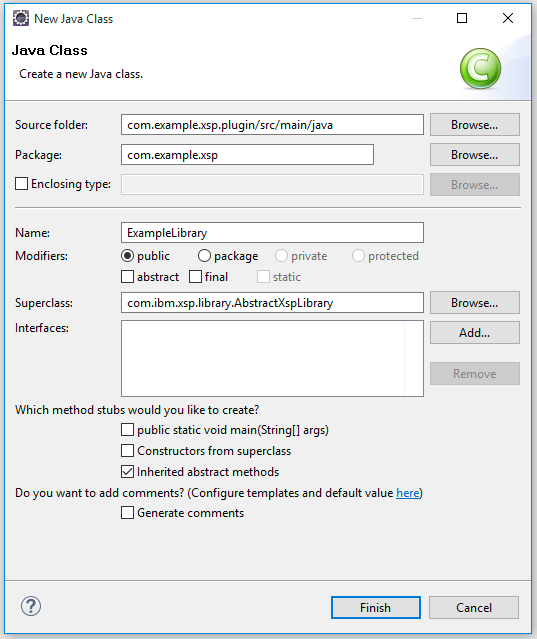
Set the class name to "Example Library" and leave everything else as the defaults:

When creating the class, it will fill in a single required method: getLibraryId(). This method's job is to return a string that should be unique across XPages libraries, and which will show up as the library's identifier in Designer. By convention, this is related to the Java reverse-DNS name you're using, plus a suffix like ".library":

@Override
public String getLibraryId() {
	return Activator.class.getPackage().getName() + ".library";
}

There are a number of other methods, though, that are worth overriding in a normal plugin, related to the plugin setup, the other XSP libraries it depends on, and its versioning. This is a reasonable baseline for a modern XPages library that will use the Extension Library:

package com.example.xsp;

import java.util.logging.Level;
import java.util.logging.Logger;

import com.ibm.xsp.library.AbstractXspLibrary;

public class ExampleLibrary extends AbstractXspLibrary {
	
	private static final Logger log = Activator.log;
	
	static {
		if(log.isLoggable(Level.FINE)) {
			log.fine(ExampleLibrary.class.getName() + " loaded");
		}
	}

	@Override
	public String getLibraryId() {
		return Activator.class.getPackage().getName() + ".library";
	}

	@Override
	public String getPluginId() {
		return Activator.getContext().getBundle().getSymbolicName();
	}
	
	@Override
	public String getTagVersion() {
		return "1.0.0";
	}
	
	@Override
	public String[] getDependencies() {
		return new String[] {
				"com.ibm.xsp.core.library",
				"com.ibm.xsp.extsn.library",
				"com.ibm.xsp.domino.library",
				"com.ibm.xsp.designer.library",
				"com.ibm.xsp.extlib.library"
		};
	}
	
	@Override
	public boolean isGlobalScope() {
		return false;
	}
}

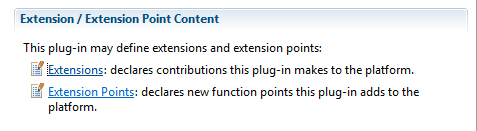
With that class in place, there's one final step for making this plugin a proper XSP library: the extension point. Extension points are how the XPages runtime knows which plugins provide libraries like this. Open the MANIFEST.MF file again and click on "Extensions" on the right side of the first page:

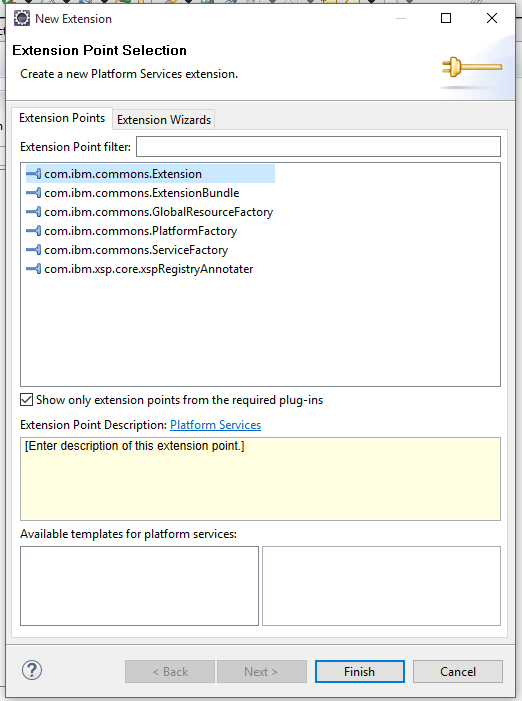
Eclipse will ask you if you want to show the hidden Extensions panel, which you do. On that tab, click "Add..." and choose "com.ibm.commons.Extension":

Once added, there will be two fields on the right side. In "type", enter "com.ibm.xsp.Library". In "class", click "Browse" and search for the name of the library created earlier, "com.example.xsp.ExampleLibrary". Once this is added, you should be able to click on the "plugin.xml" tab in the editor and see something like this:

<?xml version="1.0" encoding="UTF-8"?>
<?eclipse version="3.4"?>
<plugin>
   <extension
         point="com.ibm.commons.Extension">
      <service
            class="com.example.xsp.ExampleLibrary"
            type="com.ibm.xsp.Library">
      </service>
   </extension>

</plugin>

There will also be a file named "plugin.xml" in your project.

After all that, we have a functional basis for our plugin. There are definitely a lot of things to remember in this process, but they start to make a sort of sense the more you do it.

With that set, commit your changes, where you can see the moved Activator file and the addition of the Library stuff:

In the next post, we'll create the feature and update-site projects needed to actually install this plugin in Designer and Domino.

That Java Thing, Part 4: Creating the Plugin

Thu Nov 05 09:38:56 EST 2015

Tags: java xpages
  1. Nov 02 2015 - That Java Thing, Part 1: The Java Problem in the Community
  2. Nov 03 2015 - That Java Thing, Part 2: Intro to OSGi
  3. Nov 04 2015 - That Java Thing, Part 3: Eclipse Prep
  4. Nov 05 2015 - That Java Thing, Part 4: Creating the Plugin
  5. Nov 06 2015 - That Java Thing, Part 5: Expanding the Plugin
  6. Nov 08 2015 - That Java Thing, Part 6: Creating the Feature and Update Site
  7. Nov 09 2015 - That Java Thing, Part 7: Adding a Managed Bean to the Plugin
  8. Nov 10 2015 - That Java Thing, Part 8: Source Bundles
  9. Nov 11 2015 - That Java Thing, Part 9: Expanding the Plugin - Jars
  10. Nov 12 2015 - That Java Thing, Part 10: Expanding the Plugin - Serving Resources
  11. Nov 16 2015 - That Java Thing, Interlude: Effective Java
  12. Dec 01 2015 - That Java Thing, Part 11: Diagnostics
  13. Dec 03 2015 - That Java Thing, Part 12: Expanding the Plugin - JAX-RS
  14. Feb 19 2016 - That Java Thing, Part 13: Introduction to Maven
  15. Feb 21 2016 - That Java Thing, Part 14: Maven Environment Setup
  16. Feb 22 2016 - That Java Thing, Part 15: Converting the Projects
  17. Feb 23 2016 - That Java Thing, Part 16: Maven Fallout
  18. Feb 26 2017 - That Java Thing, Part 17: My Current XPages Plug-in Dev Environment

To make a basic XPages library, we'll need to create the trio of OSGi projects: the plugin, the feature, and the update site. For a long time, the XSP Starter Kit has been a great go-to starting point for this sort of thing. It definitely covers almost all of the potential ground, but it can be a bit overkill when you just want to put some classes in a shared place. So, for this exercise, we'll start from scratch.

But before we do that, we should create a local Git repository first. This isn't required, but it's a good idea, and Git repositories are so "cheap", technically, that there's no reason not to. There are a number of ways to do it - you can create and manage them via the command line, via a dedicated tool like SourceTree, or via the embedded Git client in Eclipse. We'll do the last one here.

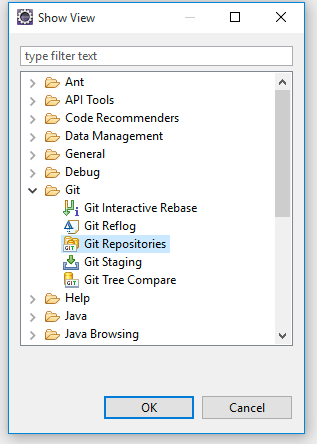
To work with Git repositories, first add the Git Repositories view (Eclipse's "view" refers to the panes you see in the window) to your Eclipse UI by going to Windows → Show View → Other...:

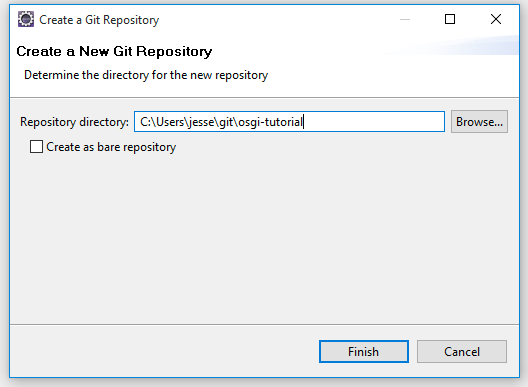
Once you add it, you can click on "Create a new local Git repository" in the pane - I suggest creating a folder beneath the "git" folder in your home directory, for organizational purposes:

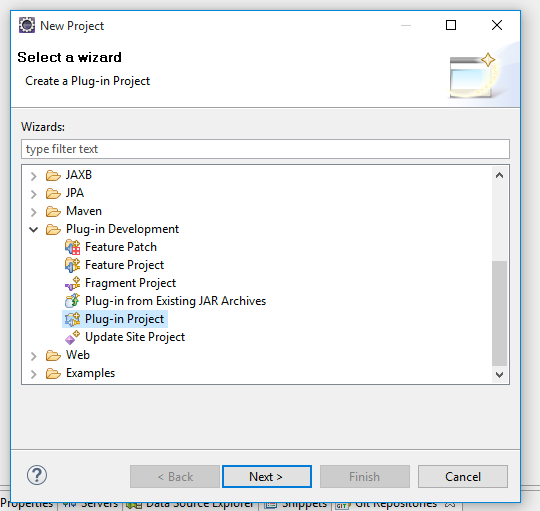
Now, on to creating an actual project. To do that, go to File → New → Project... and find "Plug-in Project" inside "Plug-in Development":

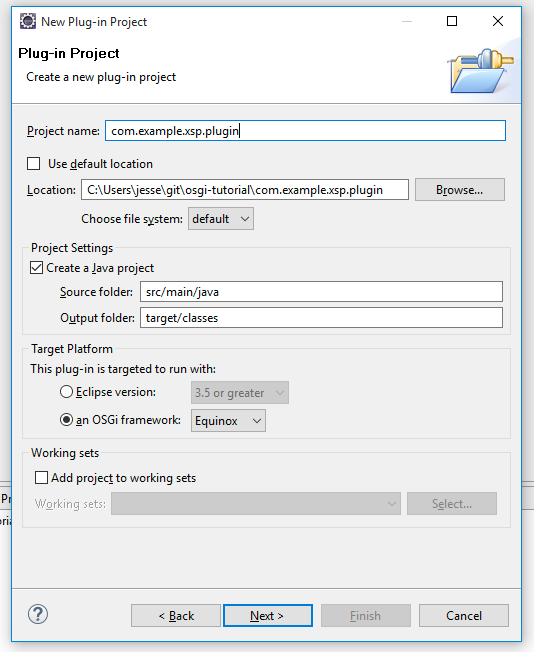
In the form that shows up after you hit Next, fill in some project details:

  • Set the project name to "com.example.xsp.plugin"
  • Override the location with a folder inside the Git repository you created earlier (make sure to include the plugin name in the path, rather than using the top level of the Git repo)
  • Change the source folder to "src/main/java" and output folder to "target/classes". These are nods towards Maven that aren't strictly required, but are a "may as well" thing.
  • Set the target platform to "an OSGi framework" → "Equinox"

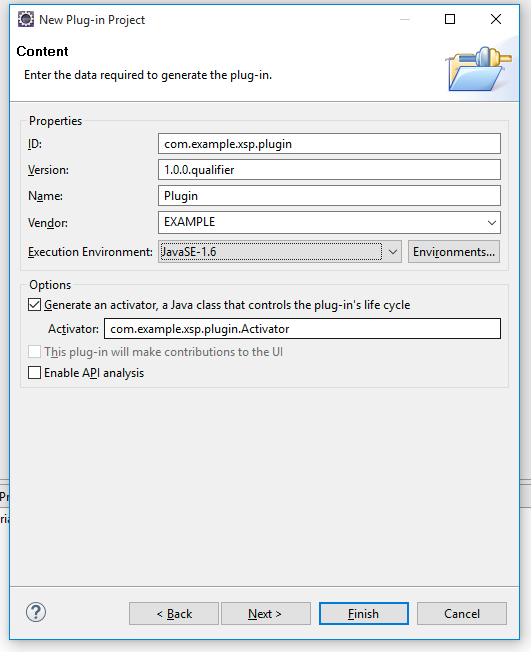
On the next page, the only change needed is to set the Execution Environment to "JavaSE-1.6" (at least until Domino gets a newer JVM):

Then, click "Finish". It will ask you if you want to switch to the "Plug-in Development" perspective - "perspectives" are an Eclipse term for groupings+layouts of views for different purposes. You can choose either Yes or No, since the other perspective is very similar to the default J2EE perspective. If you choose "Yes", you'll have to re-add the Git Repositories view as above.

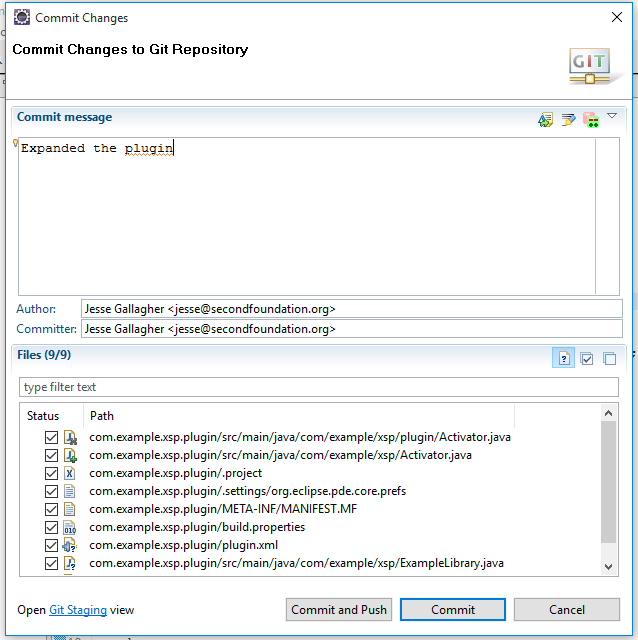
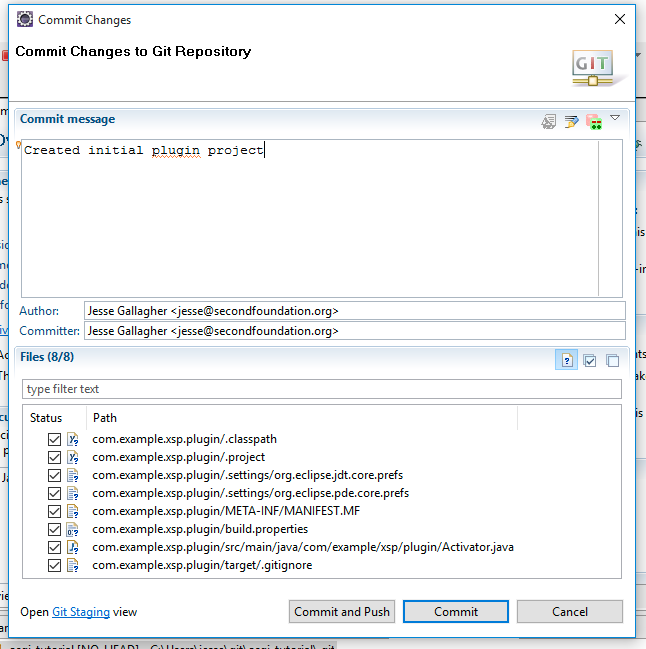
Once you've created the project, it's time to check it in to Git. Right-click on the Git repository in the Git Repositories view and choose "Commit...". The first time you do this, it will prompt you for a name and email address, which are pretty arbitrary, but it's good to keep them consistent across your Git presences. On the commit page, provide a useful message and click the "Select All" button (the middle one in the top right of the "Files" section) to include all of the newly-created files, and hit "Commit":

Now that the plugin's skeleton is in place, the next post will cover some details about it and how to turn it into an XSP Library.

That Java Thing, Part 3: Eclipse Prep

Wed Nov 04 04:26:58 EST 2015

Tags: java xpages
  1. Nov 02 2015 - That Java Thing, Part 1: The Java Problem in the Community
  2. Nov 03 2015 - That Java Thing, Part 2: Intro to OSGi
  3. Nov 04 2015 - That Java Thing, Part 3: Eclipse Prep
  4. Nov 05 2015 - That Java Thing, Part 4: Creating the Plugin
  5. Nov 06 2015 - That Java Thing, Part 5: Expanding the Plugin
  6. Nov 08 2015 - That Java Thing, Part 6: Creating the Feature and Update Site
  7. Nov 09 2015 - That Java Thing, Part 7: Adding a Managed Bean to the Plugin
  8. Nov 10 2015 - That Java Thing, Part 8: Source Bundles
  9. Nov 11 2015 - That Java Thing, Part 9: Expanding the Plugin - Jars
  10. Nov 12 2015 - That Java Thing, Part 10: Expanding the Plugin - Serving Resources
  11. Nov 16 2015 - That Java Thing, Interlude: Effective Java
  12. Dec 01 2015 - That Java Thing, Part 11: Diagnostics
  13. Dec 03 2015 - That Java Thing, Part 12: Expanding the Plugin - JAX-RS
  14. Feb 19 2016 - That Java Thing, Part 13: Introduction to Maven
  15. Feb 21 2016 - That Java Thing, Part 14: Maven Environment Setup
  16. Feb 22 2016 - That Java Thing, Part 15: Converting the Projects
  17. Feb 23 2016 - That Java Thing, Part 16: Maven Fallout
  18. Feb 26 2017 - That Java Thing, Part 17: My Current XPages Plug-in Dev Environment

Before you dive into OSGi development, you'll need a proper development environment, and that usually means Eclipse. Domino Designer, being Eclipse-based, can technically do the job and has the advantage of some of the setup being done, but it's so out-of-date at this point that it's not worth it (believe me, I tried originally). Newer Eclipse versions have improved noticeably, so it's best to grab a recent version. Currently, that means Mars, or Eclipse 4.5.1.

Before Eclipse, you'll need to install Java if you haven't already. To do that, go to Oracle's site and download the latest release for your platform. Once you install it and find out how many devices run Java, you can move on to installing Eclipse.

Head to the Eclipse download page and download the "Eclipse IDE for Java EE Developers" for your platform. They've recently added an Installer at the top of the page, and that works as well, but adds some new wrinkles that haven't made it into common knowledge yet. For now, you may want to stick with the "...or download an Eclipse Package" section. The "bitness" (32 or 64) doesn't matter too much - you should generally match the bitness of your OS.

Once you have Eclipse installed and running ("installation" generally involves dragging the extracted ZIP file content somewhere), the next step is to teach Eclipse about the XPages artifacts. If you're running on Windows and have a local Domino server, the XPages SDK may be your friend, though it hasn't been fully tested for Mars. If you are running on a non-Windows OS or otherwise don't want to go the full SDK route, there's a quick route that lacks the automation and debugger integration.

Setting up the environment used to be something of a hassle, but it became much simpler ever since IBM released the Update Site for Build Management. Primarily made for Maven-development use (sort of), this Update Site also serves as a quick stop to pick up all of the dependencies you need for XPages development in one place.

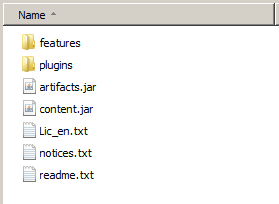
To make use of the Update Site, download the file from OpenNTF, extract it, and then extract the UpdateSite.zip file contained therein. You should end up with a folder like this:

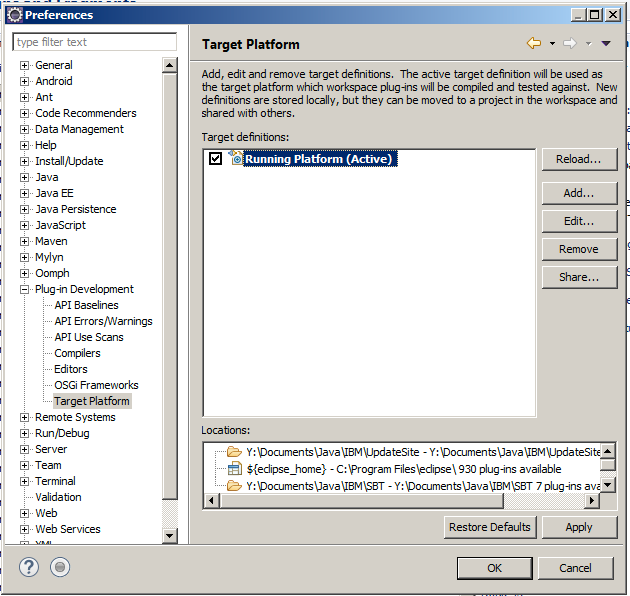
In Eclipse, go to the preferences ("Window" → "Preferences" on Windows or "Eclipse" → "Preferences" on a Mac), then go to "Plug-in Development" → "Target Platform":

Edit the existing platform and, in the "Locations" tab of the ensuing dialog, click "Add..." → "Directory" → "Next", browse to that extracted UpdateSite folder, and click "Next" to verify that it finds a bunch of plugins, and then "Finish". Now, you'll be able to reference XPages platform plugins in your projects.

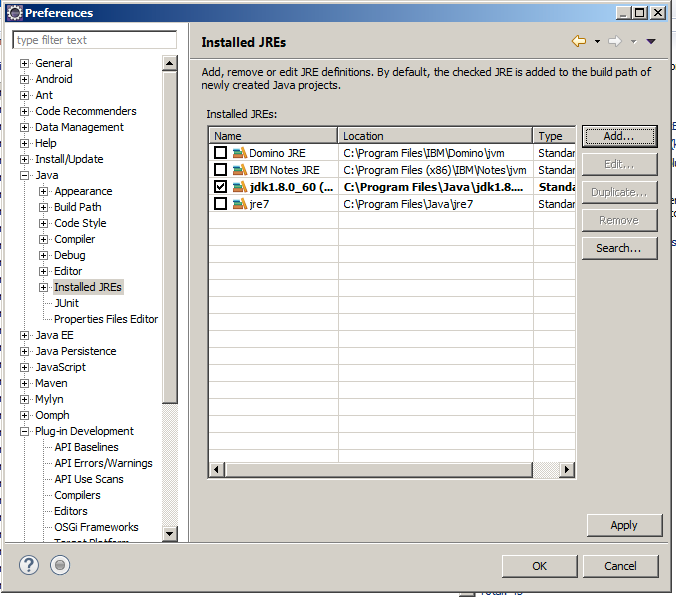
At this point, Eclipse is set up for the essentials, but it may still be a good idea to set up an appropriate JVM for Domino development to make sure you have a consistent baseline and to avoid problems where newer Java releases added classes methods not avilable in Java 6. Fortunately, on Windows (and Linux?), a Notes installation comes with a JVM that does the job nicely. To add it, go back to preferences, then "Java" → "Installed JREs" → "Add...". Choose "Standard VM" → "Next", browse to the "jvm" folder in your Notes (or Domino) installation directory, name it something appropriate, and then click Finish:

On the Mac, you can get a similar Java release from Apple, which nowadays will end up in /Library/Java/JavaVirtualMachines (older installers put it in /System/Library/Java/JavaVirtualMachines).

Now that Eclipse is set up, the next step will be to break ground on making an actual XPages plugin.

That Java Thing, Part 2: Intro to OSGi

Tue Nov 03 06:44:39 EST 2015

Tags: java xpages
  1. Nov 02 2015 - That Java Thing, Part 1: The Java Problem in the Community
  2. Nov 03 2015 - That Java Thing, Part 2: Intro to OSGi
  3. Nov 04 2015 - That Java Thing, Part 3: Eclipse Prep
  4. Nov 05 2015 - That Java Thing, Part 4: Creating the Plugin
  5. Nov 06 2015 - That Java Thing, Part 5: Expanding the Plugin
  6. Nov 08 2015 - That Java Thing, Part 6: Creating the Feature and Update Site
  7. Nov 09 2015 - That Java Thing, Part 7: Adding a Managed Bean to the Plugin
  8. Nov 10 2015 - That Java Thing, Part 8: Source Bundles
  9. Nov 11 2015 - That Java Thing, Part 9: Expanding the Plugin - Jars
  10. Nov 12 2015 - That Java Thing, Part 10: Expanding the Plugin - Serving Resources
  11. Nov 16 2015 - That Java Thing, Interlude: Effective Java
  12. Dec 01 2015 - That Java Thing, Part 11: Diagnostics
  13. Dec 03 2015 - That Java Thing, Part 12: Expanding the Plugin - JAX-RS
  14. Feb 19 2016 - That Java Thing, Part 13: Introduction to Maven
  15. Feb 21 2016 - That Java Thing, Part 14: Maven Environment Setup
  16. Feb 22 2016 - That Java Thing, Part 15: Converting the Projects
  17. Feb 23 2016 - That Java Thing, Part 16: Maven Fallout
  18. Feb 26 2017 - That Java Thing, Part 17: My Current XPages Plug-in Dev Environment

OSGi once stood for "Open Services Gateway initiative", but that name slid from "impossibly vague" to "entirely obsolete" rather quickly. For our needs, OSGi is a mechanism for bringing sanity to the "big pile of Jars" that you might otherwise have in a large Java system. It provides a standardized way to describe the name of a library, its version, its dependencies, its capabilities, and its interactions with other libraries. In this way, rather than just "commons-io-2.1.jar", you can conceptually deal with "I require org.apache.commons.io, version 2.0 or above" and the environment can suss out what that means based on what is installed.

As Domino developers, we care about a subset of the OSGi concepts, primarily those related to creating and loading plugins. There is a handful of vital terms involved, some of which I've already been tossing around:

  • JAR: a Java Archive file is a ZIP file aimed at Java, generally containing classes and other resources (text files, images, and so forth). There are variants like "War" (Web Application Archive) and "Ear" (Enterprise Archive), but they're all still ZIP files.
  • Bundle: A "bundle" is, in effect, OSGi's word for a JAR. It expands on a contained file called META-INF/MANIFEST.MF (so named because Java likes to be difficult sometimes) to define the description of the bundle: its name, version, and so forth.
  • Plug-in: This is basically the same thing as a bundle. Presumably, it technically refers to a specialized kind of bundle, but we can use the terms interchangeably. It also technically has that hyphen in it, but I often write it "plugin" anyway.
  • Feature: This excessively-vague term is OSGi's way of grouping plugins together into a single conceptual installable unit. For example, the main feature included in the Extension Library references ten distinct plugins.
  • Update Site: Update sites are to features what features are to plugins: a way to organize these features into a collection, either to install them all at once or to provide a pool of available software to install. Eclipse-the-IDE uses them extensively for the latter case. As Domino developers, we primarily use them to distribute libraries and install them into the server's Update Site NSF.
  • Target Platform: A target platform refers to the set of plugins available in a given environment, which is used to determine whether a given plugin has the dependencies it will need to run. In our case, the target platform is usually the XPages runtime environment, containing OSGi base plugins, Java servlet support plugins, and the XPages runtime plugins themselves (among others). Plugin development environments use these heavily.
  • Extension Point: An extension point is a way for a plugin to either declare that it can either provide or consume a given service. For example, you might have a plugin that says "I can make use of any plugin that provides a color" and then another that says "I can provide the color blue". By using extension points, the first plugin can find the other, even though it may have been developed entirely independently.
  • Java EE: Java Enterprise Edition (sometimes written J2EE thanks to Java's weird relationship with versions) is basically the standard "web server stuff" for Domino (though it covers other aspects). XPages is sort of like a Java EE environment, but the experience is distinct. Notably, a Java EE server is a general platform on which other web-dev toolkits - JSP, JSF, Vaadin, JAX-RS, and so forth - can run. Java EE isn't inherently related to OSGi, but the two eventually bleed into each other with Domino and WebSphere.

OSGi in general goes beyond that, and some other aspects may be useful down the line (such as interacting with the OSGi console), but for now it's enough to think of it as a set of decorations for your projects. With some of the basic terms in line, next I will move on to setting up an Eclipse environment to start development.

That Java Thing, Part 1: The Java Problem in the Community

Mon Nov 02 13:20:23 EST 2015

Tags: java xpages
  1. Nov 02 2015 - That Java Thing, Part 1: The Java Problem in the Community
  2. Nov 03 2015 - That Java Thing, Part 2: Intro to OSGi
  3. Nov 04 2015 - That Java Thing, Part 3: Eclipse Prep
  4. Nov 05 2015 - That Java Thing, Part 4: Creating the Plugin
  5. Nov 06 2015 - That Java Thing, Part 5: Expanding the Plugin
  6. Nov 08 2015 - That Java Thing, Part 6: Creating the Feature and Update Site
  7. Nov 09 2015 - That Java Thing, Part 7: Adding a Managed Bean to the Plugin
  8. Nov 10 2015 - That Java Thing, Part 8: Source Bundles
  9. Nov 11 2015 - That Java Thing, Part 9: Expanding the Plugin - Jars
  10. Nov 12 2015 - That Java Thing, Part 10: Expanding the Plugin - Serving Resources
  11. Nov 16 2015 - That Java Thing, Interlude: Effective Java
  12. Dec 01 2015 - That Java Thing, Part 11: Diagnostics
  13. Dec 03 2015 - That Java Thing, Part 12: Expanding the Plugin - JAX-RS
  14. Feb 19 2016 - That Java Thing, Part 13: Introduction to Maven
  15. Feb 21 2016 - That Java Thing, Part 14: Maven Environment Setup
  16. Feb 22 2016 - That Java Thing, Part 15: Converting the Projects
  17. Feb 23 2016 - That Java Thing, Part 16: Maven Fallout
  18. Feb 26 2017 - That Java Thing, Part 17: My Current XPages Plug-in Dev Environment

Java has been a bugbear for the Domino community for a long time. Though Notes and Domino have presented a top-to-bottom (mostly) Java environment for years, the monumental inertia of the corporate development community, the platform's tortured history of insufficiently-fleshed-out Java hooks, and IBM's "pay no attention to that man behind the curtain" pitch with regard to the language created an environment where Java is often something for "other developers".

XPages represented a tremendous leap forward for development on the platform, ditching the completely-unique bizarre forms-based web-dev experience in favor of something much closer to modern web development. At the time, the unstructured, SSJS-heavy façade presented by Designer made a sort of sense: the switch to XPages was already a huge change for Domino developers, and making XPage development look sort of like classic Notes/Domino development was a spoonful of sugar with the medicine.

But the critical flaw of XPages development has never been fixed: there's no smooth path from "hello, world" to a well-structured complex application. SSJS, as implemented in XPages, is unsuitable to the task, while Designer's presentation of the Java layer ranges from "non-obvious" to "hostile". Still, IBM did a good job of presenting the next major tier for XPages developers: writing Java first in the NSF and then in OSGi plugins. The problem has always been in figuring out how to get there.

This hurdle started out as an inconvenience just for those who wanted to figure out how the machine worked, but has grown into a significant problem for all Domino developers. While the XPages stack has remained relatively stagnant, the rest of the development world has raced forward, with new technologies giving rise to new frameworks and transforming the old. This is no discredit to the XPages team: they have consistently put in tremendous work across the board, but it's quite an industry to keep up with.

So we're in a tough spot now. The XPages platform isn't going away any time soon, but it's important for us as developers to progress. One option is to abandon ship entirely: pack up and move to some unrelated platform, leaving Domino behind entirely. But most of us, out of personal affection, professional acumen, or (primarily) business requirements, don't want to do that. Unfortunately, the path to improvement with Domino has only gotten more complicated with time. It began with learning about Java, OSGi, and Eclipse proper, but has since expanded to include a whole rogues gallery of other technologies: Maven, Tycho, m2e, Jenkins, Git, Wink/JAX-RS, jQuery, Bootstrap, Angular, and on and on.

There's no time like the present, though. I've walked this path, and I want to help everyone else walk it too. To kick that off, this series is going to cover the process of creating a basic XPages plugin, making it a little more complex, converting it to Maven, and building it with Jenkins.

To kick things off, the next post will provide an introduction to the concept of OSGi and the parts of it that we need to know for Domino development. Things may seem weird along the way, but trust me: it's worthwhile.

Domino's Server-Side User Security

Sun Nov 01 07:41:55 EST 2015

Tags: security nginx
  1. Dec 08 2012 - Putting Apache in Front of Domino
  2. May 30 2013 - Better Living Through Reverse Proxies
  3. Nov 01 2015 - Domino's Server-Side User Security
  4. Jan 30 2021 - A Partially-Successful Venture Into Improving Reverse Proxies With Domino
  5. Jan 19 2022 - PSA: Reverse-Proxy Regression in Domino 12.0.1

The other day, Jesper Kiaer wrote an interesting two-part series of blog posts talking about the security implications of HTTPEnableConnectorHeaders, something I mention in my setup example. In it, he describes the ability to specify an arbitrary username as a security hole, which I don't agree with, but I see where he's coming from. It certainly has, shall we say, implications.

The $WSRU header comes along for the ride when you enable the HTTPEnableConnectorHeaders notes.ini property (off by default) and allows you to specify any user name and have the Domino server trust it completely, as if it had generated it itself. The most straightforward use of this is as a sort of lightweight SSO: if you're already authenticated in to the front-end web server (say, however WebSphere did it when using this), that server can fill in the $WSRU field and have it "count" as a Domino login without forcing the user to log in again. This is sort of what I did to replace my DSAPI filter with a Lua script in nginx.

But what immediately comes to mind is that this allows anyone with HTTP access to the server to type in any ol' username and have Domino accept it. This is why binding Domino's HTTP stack to a local-only (or LAN-only, if you have a nicely-divided server infrastructure) address is important: you wouldn't want a server with this setting facing the public Internet.

The extra good news there is that, when it's fronted by a proxy like nginx, the defaults prevent these $-headers from being passed through from remote clients and all is well, whether or not you specifically account for them.

Now, Jesper also pointed out that, even if you bind HTTP locally, you're still potentially vulnerable to this sort of privilege-escalation problem if you have code running on the server that can make local HTTP calls. And for that case, well... yep. That's true, and it's concerning. However, honestly, that boat already sailed.

Domino's security model has long been lauded by its proponents as thorough and strong, and it is - it's quite good. However, things have gotten a little murkier ever since server-side code has become the primary method of executing Domino apps. Between a Notes client and a Domino server, security is very locked down: the client authenticates via its cryptographic keypair and no lying about its username is going to get the server to treat it as another name (hence why "Run on behalf of" agents don't perform as such when run locally). Running on a server, or between a server and a trusted server ID "client", it becomes a matter of just making up and passing around strings. The permissions used for a given database or view are just whatever the server decided to use as the name when opening it - that's what the hNames parameter of NSFDbOpenExtended is for.

This is how all web user logins work for Domino: the server agrees for itself that, for high-level API calls during that web request, it's going to act like CN=Joe Schmoe/O=SomeOrg instead of CN=Super Trusted Server/O=SomeOrg. It's still the server, though, which is why session.getUserName() in a web-run agent or XPage returns the server name, but session.getEffectiveUserName() returns the current user or run-on-behalf-of value.

The thing is that the hooks to do this aren't any deeper than the HTTP call with $WSRU set - they're all over the place. The XPages runtime provides a very-convenient hook, but that's not new: the C API is where it all starts, and that's reachable readily from LotusScript and Java. Once you have the same sort of access you'd need to make an HTTP call from an agent, the doors are open pretty wide.

But this isn't even really a problem! To run into any situation like this, you have to have code executing on your server, whether it's inside Domino or not. And if you have that in the hands of a real attacker, then, honestly, this "run on behalf of" business isn't what should keep you up at night. Once you have a trusted developer executing malicious code on your server, you're already done.

Satisfying Designer's Peculiar OSGi Constraints in Tycho

Mon Oct 12 17:33:14 EDT 2015

Tags: tycho

Before anything else, I should mention that this post is entirely on the topic of building OSGi plugins with Maven. If you're not doing that yet, this probably won't be particularly useful.

For the most part, when building OSGi plugins for XPages, you can be fairly confident that the available plugins will be fairly similar between Notes and Domino. That's not quite always the case, though - there are a set of plugins that are available in Domino that aren't present in Designer's runtime. They're generally physically there in the Notes install, in the osgi folder, but are presumably only loaded when you (inadvisably) fire up the local web preview.

In this situation, you may want to make your XPages library depend on a server plugin, but doing a normal OSGi dependency will cause it to fail to load in Designer. OSGi provides a clean mechanism for this: optional dependencies. If you mark a dependency (on a plugin or on a Java package) as optional, its absence will not prevent the plugin from loading. As long as the code that requires those classes is never run (as would be the case for server code loaded in Designer), you're in the clear.

However, when working on plugins with Maven, I've found it useful in a couple cases to tell Tycho to ignore optional dependencies to prevent it from choking on unimportant cascading dependencies or other issues. The trouble is when you combine these two techniques: now Tycho won't bother loading your optionally-required plugin, and so it won't have the classes available when it goes to compile your code.

A solution to this is to force Tycho to include the plugin in its view of the world regardless of what the MANIFEST.MF files say. This is accomplished in the target-platform-configuration plugin entry that shows up in your average Tycho pom.xml file. If you've started from the same starting point as most, the required section will already be in there: in the configuration, there should be a node named dependency-resolution and then one within that named extraRequirements. This allows you to shoehorn in these types of extra plugins - it's used in the normal case here for the "shim" Notes API plugin to avoid a dependency on Notes.jar. The same can be done for these non-Designer plugins:

<plugin>
	<groupId>org.eclipse.tycho</groupId>
	<artifactId>target-platform-configuration</artifactId>
	<version>${tycho-version}</version>
	<configuration>
		<!-- snip -->
		<dependency-resolution>
			<optionalDependencies>ignore</optionalDependencies>
			
			<extraRequirements>
				<requirement>
					<type>eclipse-plugin</type>
					<id>com.ibm.notes.java.api.win32.linux</id>
					<versionRange>9.0.1</versionRange>
				</requirement>
				<requirement>
					<type>eclipse-plugin</type>
					<id>com.ibm.domino.xsp.bridge.http</id>
					<versionRange>9.0.1</versionRange>
				</requirement>
			</extraRequirements>
		</dependency-resolution>

	</configuration>
</plugin>

Once that's in place, Tycho will include the plugin in its build and will be able to compile properly.

Incidentally, this technique has also proven useful in executing test cases in a setup that makes heavy use of fragments. Tycho won't automatically pick up all fragments when constructing a test environment, but you can force it to include them by adding an extra requirement on a feature that references them. For example:

<!-- snip -->
<extraRequirements>
	<requirement>
		<type>eclipse-feature</type>
		<id>some.parent.feature</id>
		<versionRange>0.0.0</versionRange>
	</requirement>
</extraRequirements>

This is the sort of Maven/OSGi interaction that brings joy to my heart and grey to my hair.

Release Day

Sat Oct 03 19:34:03 EDT 2015

Tags: oda framework

Today, I put two long-overdue releases up on OpenNTF.

First and by-far-foremost is version 2.0.0 of the OpenNTF Domino API. The major version reflects not so much a major new architectural change over the 1.5.x release candidates as it does the fact that those releases were conservatively named and presaged a Java-style "1.x forever" future. Various development builds and release candidates have been used in production by the API team and others for a while now, and so this represents a mature release of changes such as the Maven conversion, revamped auto-recycling, and graph API.

Alongside it, I bumped my own framework up to version 1.1.0 to reflect improved stability and a clean dependency on ODA 2.0.0. I also improved its packaging and created a distributable along the lines of the new ODA version.

So: enjoy!

The Podcasts I Listen To

Tue Sep 22 12:46:27 EDT 2015

Tags: podcasts

Over the years, I've accumulated a stable of podcasts I listen to, mostly tech-related (and then mostly Apple-related), and I realized that this may be a handy list for anyone looking to pick up some new listening material. I've uploaded the full list here, but here are some of the highlights:

  1. Accidental Tech Podcast - This show is hosted by John Siracusa (of OS X review fame), Marco Arment (of Overcast and Peace fame), and Casey Liss (of, now, ATP fame). It's almost all about technology, primarily Apple, with minor divergences into other topics.
  2. Hypercritical - This show ended several years ago, but is worth going back to if you have the time; it's John Siracusa's original podcast.
  3. Reconcilable Differences - Rounding out the Siracusa top-heaviness of my list, this podcast is less about tech and more about growing up and outlooks on life.
  4. Roundtable Podcast - This one not only doesn't involve John Siracusa, but also isn't about programming. Instead, it's about video games, hosted by a couple people I watch on YouTube and Twitch, and with a slant towards indie games.
  5. The Talk Show - Back to form, this is John Gruber's Apple-tech-heavy show, which is a great companion if you follow Daring Fireball.
  6. Random Trek - A podcast about a random episode of a Star Trek series each week. That description should tell you quickly whether or not you'd like it.
  7. Debug - This is something of a long-form conversation/interview show with a tech personality or two each episode. The episodes with Don Melton and Nitin Ganatra are particularly good.
  8. The Incomparable - This one covers geeky culture stuff generally: TV, movies, books, and so forth. I only listen to the episodes where they're talking about something I know, but those episodes are always worth listening to.
  9. Developing Perspective - This is a 15-minute-an-episode podcast about being an iOS developer, and is a great window into that world.
  10. Quit - This is about improving your career, including the potential benefits and perils of quitting a steady-but-crummy job for something else, and is often quite entertaining to boot.

There are a number of other good ones on my list that I didn't cover, but I didn't want to make the "highlights" summary TOO crazy. If you're interested in getting up to speed with the Apple world in particular, you can't go wrong with either ATP or The Talk Show.